|
|
Just a thanks to forum member "ynotfish".
I downloaded his custom Blending Effects found in the PDNews issue 5 thread here…
http://forum.cyberlink.com/forum/posts/list/63476.page
Found in this post here…
http://forum.cyberlink.com/forum/posts/list/63476.page#post_box_289370
I first made a safety copy of the original PD15 "BlendEffect" folder and then renamed it by adding the word "copy" (just in case I need to restore it).
Downloading the zipped folder and unzipping it was swift and easy. Then per the post's instructions, I began the installation which was a breeze to complete. Upon opening my PD15, I found that all of these new custom templates appear to be working perfectly. So, give them a try folks, as you may find as I did, that they're cool little bits that can spice up your productions.
Also a big thanks to "all" involved in putting forth the effort to contribute, compile, and publish the PDNews newsletter.
__________________________________________________________________________
|
|
|
Thanks for the info on the Blend effect. Something I hadn't explored all that much. But now after reading the article in this issue 5 of PD News, I see that this is a feature that warrants some further exploration on my part.
Thank you PD News contributors!
___________________________________________________________________________
|
|
|
Just read Issue 4. Very well laid out with great info. Thanks to those who contibuted to the latest edition 4 of PD News. The rubber band tip was great idea.
___________________________________________________________________________
|
|
|
Another fine and informative issue, and very comprehensive. I esspecially liked the rubber band tip for a smoother tripod pan.
Keep up the great work PD News contibutors. Very useful information.
_________________________________________________________________________
|
|
|
Hi jaymay22,
Is this what you are referencing?
https://www.youtube.com/watch?v=plzcqbNdVYs
If so, it's part of the PDtoots Gold Collection of custom created .dzp files that are available for download to any PDtoots channel "subscriber" upon request.
____________________________________________________________________
|
|
|
Hi Chuck,
No CL pop-up ad here when viewing. I did get a pop-up for a Home Security company with a smal "Google Ads" in the corner. (I had Googled a few Home Security firms a few days ago). So I'm pretty sure this is a Youtube/Google issue in tracking your browsing habits and offering up ads to comport with your tracked browsing interests. The second time I opened your video, I got a pop-up for Firestone Tires.
I understand you being "really pissed", but as I didn't see any CL pop-up ad in your upload, I completely doubt that CL is the main culprit to be pissed at. 
Hopefully others will chime in.
____________________________________________________________________________________________________
|
|
|
Hi Philip0521,
I too have often used Pond5.
I assume like me, you also get the free "clip of the week" download offers. The true answer to your question would probably be best answered by someone of our more tech oriented experts here on the forum. They may require a DxDiag of your rig (Google that if not familiar), and other of your computer/video card/etc details. And what your main intended delivery method is for the productions you want to share (e.g. Burn to Bluray, Or send as an email attachment, Or upload to Youtube/ Vimeo, and so on).
For me, downloading the "mov/h264/1920x1080" version/option has been a fail safe compromise format that works with my laptop and a more powerful Desktop.
But then it hit me.
Pond5 presents me with 3 different formats of varying file size, and I have 2 outboard aux USB3 storage drives. So why not simply download and archive a copy of each of the available formats? Some day it may come in handy to have a copy/format that may work better faster on a new computer.
But for now I tend to use the "mov/h264/1920x1080" format, as my main aim these days is displaying a production on Youtube & Vimeo. I'm not burning to DVD and not anticipating any of these productions will be be viewed in full 4K HD on a big screen.
Hopefully other of our more tech advanced members will chime in here with their insights as to your query.
__________________________________________________________________
|
|
|
Excellent presentation and very informative. Great work contributors.
___________________________________________________________________
|
|
|
Congrats to all who may have contributed to this edition. Very well done and well written. The issue is also well laid out and visually very pleasing. Good Job folks.
_____________________________________________________________________________________________________
|
|
|
Congrats to all who may have contributed to this edition. Very well done and well written. The issue is also well laid out and is visually pleasing. Good Job folks.
____________________________________________________________________________________________
|
|
|
Quote
Hi Members,
A hotfix for the animated GIF issue has been released.
How to implement the hot-fix:
Download the hot-fix MediaObj.dll via the links below
32bit OS: http://download.cyberlink.com/ftpdload/cs/temp/VDE172309-0015/x86/MediaObj.dll
64bit OS: http://download.cyberlink.com/ftpdload/cs/temp/VDE172309-0015/x64/MediaObj.dll
Browse the folder C:\Program Files\CyberLink\PowerDirector15\runtime\mediacache in your PC.
Rename the file MediaObj.dll in the folder C:\Program Files\CyberLink\PowerDirector15\runtime\mediacache as the backup.
Copy the downloaded MediaObj.dll to the same folder.
Open Windows Registry Editor and find the 2 paths in the Registry Editor.
[Computer\HKEY_CURRENT_USER\Software\CyberLink\MediaCache5][Computer\HKEY_CURRENT_USER\Software\CyberLink\PowerDirector15\MediaObj\MediaCache5]
Delete both “MediaCache5” folders in the Registry Editor path to clean media caches.
Launch PowerDirector 15 and import an animated GIF.
Cheers
PowerDirector Moderator
PDR Moderator,
Thank you! The concise manner in which you laid out the steps to implement this "hot fix" modification, was so well laid out that its was really quite easy to follow, even for a less than tech savvy person like myself. The result is that animated GIFs now properly import and work perfectly.
Thanks for providing this HotFix.
( Windows7 / PDR15 / v2509 )
________________________________________________________________________________________________
|
|
|
Neil Wrote:
Actually Tony, I don't think you CAN escape having the cursor appearing while using a screen recorder programme, ANY screen recorder programme.
Interesting proclimation Neil. But one of my screen capture programs does indeed have the capability to not record the cursor movements.
http://www.mediafire.com/view/678fqzx7k0g77um/Capture.png
__________________________________________________________________________________
|
|
|
Here's another possible option, but it's quite labor intensive. There is probably a better way, though this does work.
https://www.youtube.com/watch?v=Aoxs-elMuJ4
--------------------------------------------------------------------------------------------------------
|
|
|
Thanks for that share Barry.
_____________________________________________________________________
|
|
|
|
Quote:
...but this seems pretty ridiculous to have to wait 10 hours for a download when I'm on this strong of a connection. Any ideas or help would be welcome.
Hello injineer,
Jn addition to Longedge's advice, I've experienced positive results in drastically reducing download times, by using the Free Download Manager program. I've used it to downloaded every new PowerDirector since version 9 (?).
http://www.freedownloadmanager.org/
If I remember correctly, employing The Free Download Manager program to manage my PD14 download resulted in a dowload of less than an hour, to complete downloading all of the PD14 folders, files, and assets over a high speed cable internet connection.
I'm not a techie but was made aware of this download assistance program from a true techie some years ago. So I can't give you any operational instruction or tech details, other than to point out that it apprears to initiate a simultaneous download of several separate streams of a download at the same time. I've never noticed any ill side-effects as a result, nor did I need to disable my Norton Securities.
Just sharing my experience. Perhaps more members will chime in with their diagnosis and further possible solutions.
___________________________________________________________________________
|
|
|
|
Quote:
What do I need to copy over for it to work?
DevilDogg,
To followed up on Carl's suggestion, detailed instuctions/steps are shown here in this video tutorial.
https://www.youtube.com/watch?v=D2CYLYIynB0
____________________________________________________________
|
|
|
Congrats to BarryTheCrab. 5000 posts!
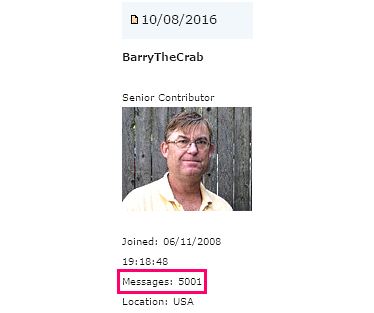
Check out his website here for lots of tools and services for PowerDirector editors.
http://www.bgillcyberstudio.com
__________________________________________________________________
|
|
|
|
Quote:
...but cannot see any sign of any motion blur. I am trying to cure the jitter on fast moving objects shot from a fixed camera position, so maybe I'm not using this feature correctly. Any help will be appreciated.
Hi Keith R,
Yes, perhaps the Motion Blur tool is not the optimal tool for what you're trying to accomplish in... "curing the jitter on fast moving objects shots". Motion Blur has it's limits. Perhaps more details or an attached short video snippet or YouTube example, may garner a resolution offered by some of the more active members here. Meanwhile, if you haven't already viewed it, here are the bare bone basics of the Motion Blur tool.
https://www.youtube.com/watch?v=iZjy6ZwmyHs
___________________________________________________________________________
|
|
|
Hi Angela,
Quote:
My system keeps crashing
I'll leave the crashing issue to our many IT experts here, as perhaps your crashing issue may most likely a separate issue, unless your computer's recourses are maxed out by applying a large amount of Efx and Tools and FIx/Enhance.
Quote:
...and coincidentally there are orange exclamation marks (or something like that
I think you'll find upon closer examination, that the orange "explain mark" ("!") is instead a lower case "i" icon. And as JL_JL tried to explain, are simply indicators that you have applied anyone of PD,s many modifying effects/tools to particular clip/image in your timeline.
Hopefully, with more info on your part, our gracious computer savvy aficionados here, can to help you retrify your crashing issue.
Happy Editing i ,
______________________________________________________________________________________
|
|
|
Original post removed by user.
__________________________________________________________________________________
|